Version 1.0 - Last Updated: 08 Jul 2025
Creating LLE courses
Creating Course Variants
Variant course information covers the elements of a course that may change from year to year, such as:
- start dates
- fees
- intake patterns
These details allow us to record each distinct version of a course in CMS.
You can add multiple variants of a course under the same core course. There’s no need to create multiple core course details if the only change to the course is variant options such as:
- location
- course start date
- study mode
- delivery method
From the course record, you can add a new variant by selecting the Add New Variant option. This opens the variant creation page, where you can add the specific details for that version of the course.
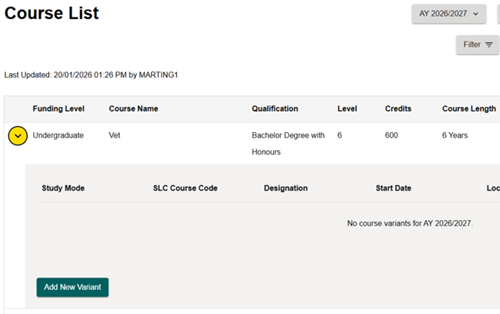
We’ll capture the following fields for variant information:
- Study Mode
- Delivery Method
- Location
- HECoS Codes
- Awarding Body
- Available Course Years
- Credit‑Bearing Indicator
- Taught Credits
- Taught Fee
- Specialist Study
- Specialist Study Credits
- Specialist Study Fee
- Study Periods
You can find more details about these in the course service definition.
Delivery Method, Location, HECoS Code and Available Course Years
Please refer to the 2026/27 Guidance Chapters to determine the Delivery Method and eligibility requirements for location types.
The Delivery Method records how you’ll teach the course variant. Entering it correctly means CMS can identify whether learning takes place on campus or via distance learning.
The Location details specify where you’re delivering the teaching and should reflect the primary site associated with the course.
The HECOS Code identifies the subject area of the course using the Higher Education Classification of Subjects (HECoS). You must make sure the HECoS code accurately reflects the primary subject. This is used to determine eligibility and funding rules under LLE. Refer to the 2026/27 Guidance Chapters for further guidance.
Available Course Years identify the specific years in which you’re offering the course variant.
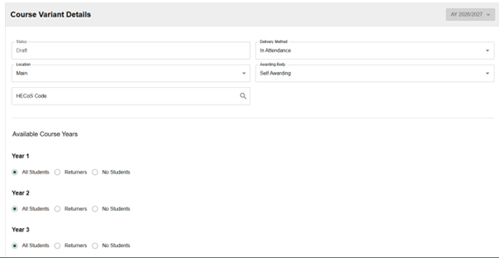
Awarding Body
The Awarding Body field captures the organisation that awards the qualification linked to the course variant.
There are 2 options:
Self award
Select ‘self-award’ if you have the degree awarding powers required to validate the course.
Other
If you do not have degree awarding powers, select ‘other’ and enter the name of the validating partner for the course.
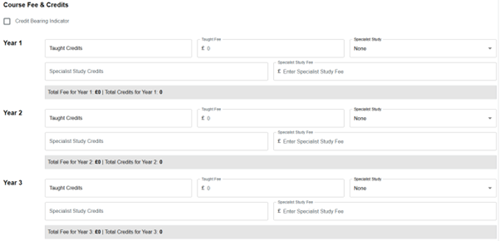
Course Fee and Credits
Credit Bearing Indicator
You need to select Credit Bearing Indicator to confirm whether a course or course year carries credit.
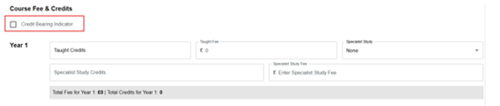
Certain courses such as medicine courses will be classed as non credit bearing. Where this is the case the Credit Bearing Indicator will remain de-selected. For a full list of the non credit bearing courses see the 2026/27 Guidance Chapters.
It is recognised that certain elements of the non credit bearing courses listed in the courses guidance chapter will have learning hours that do not equate to physical credits. For example, placement hours as part of a nursing degree. For this reason, if there are elements of your course that are non credit bearing, to make sure you can charge the full tuition fee for your students on the course, you should use the per course amount figure listed in the course service definition for that qualification.
Where a course or course year is non credit bearing, CMS will automatically capture a default credit value in the taught credits box. For example, for a full time 360 credit degree, it would enter 120 credits for each of the 3 years of the course.
If you add a course as a provider outside of England the course will be classed as non credit bearing. In this case we’ll apply default credits.
Taught Credits and Taught Fee
Taught Credits record the number of credits delivered through taught learning for the course year. Where a course variant is credit bearing, the taught credits for each course year may be flexibly set between 30 and 180 credits. This is with the exception of a small number of ALL transfer courses. The number of credits depends on how you structure learning and delivery.
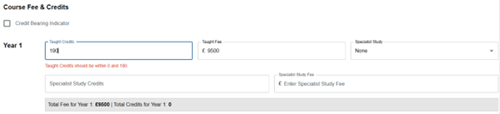
This is for consistency between the qualification definition and the annual credit distribution. For example, if you set up the course with the HNC qualification at 120 credits, then you could not enter 130 taught credits during the variant set up.
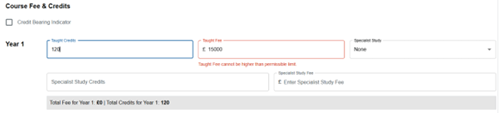
The Taught Fee records the tuition fee charged for the taught learning delivered in the course year. The fee you enter must not exceed the maximum cost per credit limit. The limit is determined by your provider’s fee cap/120. This is then applied to the number of Taught Credits recorded for that year. The fee caps can be found on the provider page on CMS.
For full accuracy, you should calculate the taught fee using the formula:
- Fee Cap ÷ 120 × Course Year Credits
- For example, £9,790/120 x 100 credits = £8,158.33
This gives the exact maximum fee permitted for the taught component of the course year. We ask that you complete calculations in advance. This helps to make sure you record the correct fee and avoid delays during course submission.
Specialist Study
Specialist Study refers to course components within the designated programme that can form part of the overall designated course. These are:
- Foundation Years
- Placement
- Study Abroad
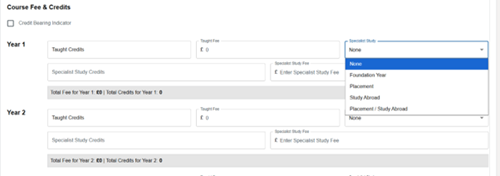
If you did not select the relevant attribute when creating the core course details you will not be able to select the specialist study. You must go back and edit the core course details before continuing.

Specialist Study Credits and Specialist Study Fee
You must enter Specialist Study Credits in the year the specialist study component is studied in.
You can add the additional 120 specialist study credits on top of the qualification per course amount, to increase the overall course credits. The overall course year cannot exceed 180 credits, otherwise the error message below will be displayed.

For example, you should enter a bachelor’s degree with honours with a foundation year as 360 credits at the core course level. You should enter the additional 120 credits for the foundation year as specialist study credits in the course variant. This will show as 360 in the qualification credits field and 480 in the overall credits field.
The Specialist Study Fee records the tuition fee charged for the specialist study component of the course year.
As with taught learning, we base fee limits for specialist study on the principle that credits form the basis of fee limits and tuition fee loans. Therefore the fee you charge must align with the credit value you allocate to the specialist study period.
CMS includes validation to support you in making sure the specialist study fee does not exceed the allowable limit. You remain responsible for entering the correct fee, underpinned by the correct credit allocation.
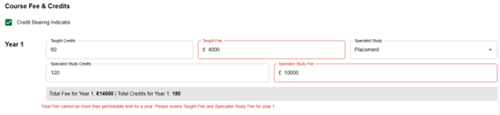
If the maximum per-credit fee limit for the specialist study feature you are entering was £1200 and you have entered 60 specialist study credits, your specialist fee cannot exceed £600.00. The calculation is £1200/120) x 60 credits = £600.00.
CMS will not allow you to enter 0 fees for the specialist study period, you must enter at least £1.
Study Periods
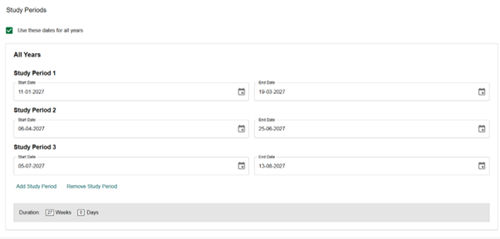
Study Periods is new terminology within CMS and replaces the previous use of Term Dates. Study periods allow you to record the distinct blocks of time in which a student is actively engaged in learning throughout the academic cycle, using natural breaks as boundaries between periods of study. This includes holiday periods. This approach provides a clearer, more flexible way of capturing the actual pattern of delivery across the course year.
You can enter between 1 and 6 study periods for each course variant. The number of study periods depends on the structure and delivery model of the course. You can set study periods uniformly across all years of the course where the pattern of delivery remains consistent. Alternatively, you can define them separately for each year where the structure varies across the duration of the qualification.
Study periods should reflect the actual delivery pattern of the course, as these are used in student support assessments.
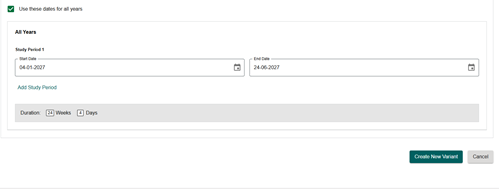
Once you’ve entered all of the variant details, select 'Create New Variant' to save as a draft.
Activating draft courses
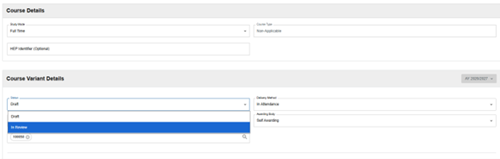
Once you’ve saved your course and are satisfied that you’ve entered all details correctly, you must change its status from Draft to In Review. You can do this by selecting the Edit option from the Select Action dropdown for the newly created variant.

Updating the status and selecting Save Changes will move the variant into the In Review stage.
When a course variant is in review, we’ll validate it by reviewing the information and checking for any anomalies. The course eligibility remains your responsibility.
During this stage, the course will be locked for editing, and you will not be able to make any changes.

If we find any issues during validation, we’ll return the variant to Draft status so that you can correct the details and select Save Changes.
If the course variant passes all checks, we’ll update the status to Active. This will also update the status of the core course to Active. If there are multiple course variants, the core course will change to Active when at least one variant has been set to Active.