Version 1.0 - Last Updated: 15 Jul 2026
SIS LLE guidance
Search options
Clear Search & Results
By selecting Clear Search & Results, it will clear all fields and revert to the initial view. If you have any search results open, these will also be removed.
Display Results
By selecting Display Results, it will perform a search based on the criteria you have selected and then display the results on the screen.
Export Results
By selecting Export Results, it will present you with the option of exporting your search results in one of the following formats. Select the radio button and enter the file name into the dialogue box and select Export Results. This will create a file in the format you've selected.

The fields in each file are detailed in the LLE Application, Attendance and Registration technical specifications, available on the HE Gateway.
For all searches, select the Academic Year from the dropdown menu at the top of the page:

You're not limited to which fields or sections you can search on. You can select multiple fields from either the course and/or application sections.
The following are the fields available in the Course section:
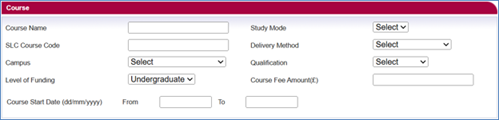
- Course Name: you must enter at least 3 characters to perform a search. Wildcards are no longer required.
- SLC Course Code: you must enter at least 3 characters to perform a search. Wildcards are no longer required.
- Campus: to select a specific campus, highlight the campus location from the dropdown menu.
- Level of Funding: although LLE is limited to undergraduate funding, you'll see a dropdown if you choose to use this option.
- Course Start Date From / To: enter the start date for the courses or modules you want to view. For example, to view all courses that start on 1 August, enter 01/08/2026 in both the From and To fields. To view courses that start between 1 and 31 August, enter 01/08/2026 in the From field and 31/08/2026 in the To field. You should enter this in dd/mm/yyyy format.
- Study Mode: you'll see a dropdown with a choice of modes of study. These are:
- FT – Full Time
- PT – Part Time
- AC – Accelerated
- Delivery Method: you'll see a dropdown with a choice of delivery methods. These are:
- Distance Learning
- In Attendance
- Course Fee: enter the full course fee rate you're charging in this field.
The fields available in the Application section include:
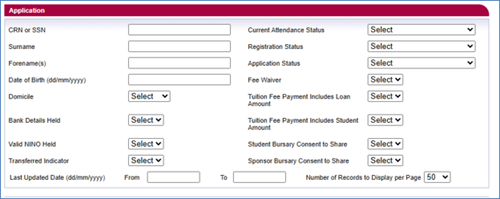
- CRN or SSN: these are unique student identifiers issued by us.
- Surname: the student’s last name.
- Forename(s): the student’s first name.
- Date of birth: the format is dd/mm/yyyy.
- Domicile: a dropdown menu with a choice of domiciles.
- Bank Details Held: this shows if we have the student’s bank details (Y or N).
- Valid NINO Held: this shows if we have a valid National Insurance number for the student (Y or N).
- Transferred Indicator: a dropdown that lets you filter students who have or have not transferred out of your university or college (Y or N).
- Last Updated Date (dd/mm/yyyy) From and To: the date range you want to check for student information updates. You must both the To and From fields.
- Current Attendance Status: a dropdown with a choice of current attendance statuses of the student. The list includes:
- Awaiting Attendance Confirmation
- Attendance Confirmed
- Attendance Confirmation Not Required
- Awaiting Reassessment
- Registration Status: the registration status of the students you're searching for. The list includes:
- Awaiting Registration Confirmation
- Registration Confirmed
- Not Registered
- Registration Confirmation Not Required
- Application Status: the application status of the students you're searching for. The options are:
- Approved
- Cancelled
- Withdrawn
- Suspended
- Fee Waiver: the dropdown options are Y or N. Where you select Y, it will display all applications that have been awarded a Fee Waiver via the Bursary Administration Service (BAS).
- Tuition Fee Payment Includes Loan Amount: a dropdown that lets you filter all student records where the tuition fee loan amount is equal to or not greater than zero.
- Tuition Fee Payment Includes Student Amount: where you select Y, it will display all student applications where there is an element of the tuition fee payable by the student.
- Student Bursary Consent to Share: a dropdown that lets you filter students by those who have or have not given consent to share for bursary purposes.
- Sponsor Bursary Consent to Share: a dropdown that lets you filter students whose sponsors have given consent to share for bursary purposes. If there are 2 sponsors, this will only show as Yes if both have given consent to share.
- Number of Records To Display: the number of search results per page. The default is 50, but you can change it to 100 or 200.