Version 1.0 - Last Updated: 15 Jul 2026
SIS LLE guidance
View CoC
View CoC
Go to the LLE CoCs menu and select View CoC. This will open the Change of Circumstance Search Criteria.
You can use the search options to view the CoC you need.
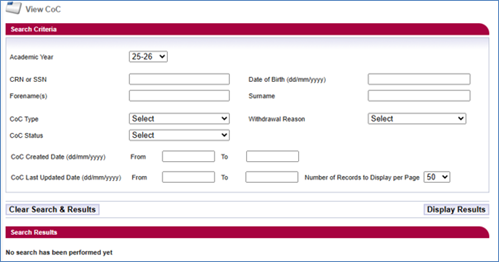
The following search options are available:
Academic year
This defaults to the current academic year. It’s the only mandatory field you need to run a search.
CRN or SSN
Customer Reference Number and Student Support Number. These are unique student identifiers.
Forename(s)
The student’s name.
Date of Birth (dd/mm/yyyy)
The student’s date of birth, the format is dd/mm/yyyy.
Surname
The student’s name.
CoC Type
A dropdown menu with options for the CoC search.
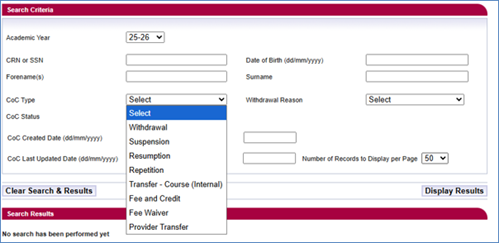
You can choose:
- Withdrawal
- Suspension
- Resumption
- Repetition – to follow
- Transfer – Course (Internal)
- Fee and Credit
- Fee Waiver
- Provider Transfer
CoC Status
A dropdown menu with options for the CoC search by status.
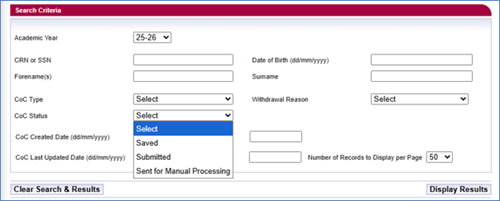
You can choose:
- Saved
- Submitted
- Sent for Manual Processing
Withdrawal Reason
A dropdown menu with options for the CoC search by withdrawal reason.
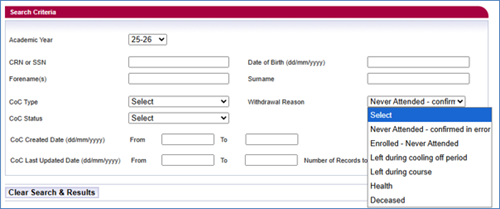
You can choose:
- Never Attended – confirmed in error
- Enrolled – Never Attended: this should be used when the student has enrolled for their course but never attended when the course started.
- Left during cooling off period
- Left during course
- Health
- Deceased
CoC Created Date (dd/mm/yyyy) From and To
The date range you want to check for the CoC created date. If you use the from field you must use the to field and vice versa.
CoC Last Updated Date (dd/mm/yyyy) From and To
The date range you want to check for the CoC last updated date. If you use the from field you must use the to field and vice versa.
Number of Records to Display per Page
The number of search results per page. The default is 50, but you can change it to 100 or 200.
Clear Search & Results
This clears all fields and reverts to the initial view. If you have any search results open, these will also be removed.
Display Results
This searches all CoCs on the system, retrieves those that match your search criteria and displays them on the page.
Search Results
The se are the the fields you'll see for each student record. They'll be listed alphabetically by surname.

CRN
Customer Reference Number – these are unique student identifiers.
SSN
Student Support Number – these are unique student identifiers.
Full Name
The student’s full name.
Date of Birth
The student’s date of birth.
CoC Type
The student’s CoC type.
Effective Date
The effective date of the CoC.
Status
The current status of the CoC. If the CoC has been recently submitted it will be waiting to move into a queue for us to work on. The system will update within 24 hours.
If the status is shown as ‘’Sent for Manual processing, our automatic processing systems cannot work this CoC. It is placed in a queue for our processing staff to work it. Our service standard for CoC processing is 20 working days in off-peak periods and 30 working days during peak periods (August to end of November).
Last Updated Date
The date the CoC was last updated.
Created By
This username of who created the CoC. It will display as SIS_APPLICATION_SERVICE or JWSSIS if it was a system action.
Created Date and Time
The time and date the CoC was cretaed.
View CoC Details
When selected, you’ll be directed to the View CoC Details page for the relevant CoC.
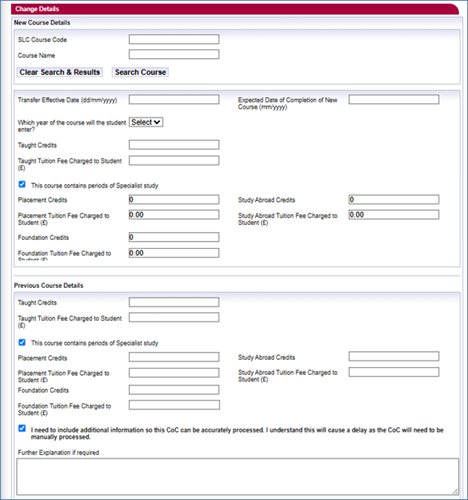
CoC status definitions
Once you've submitted a CoC, you can view its status by selecting the History button on the students record. You can do this once you’ve searched from the LLE Applications page.
- Go to the SIS Homepage and select LLE Applications. This will take you to the Application search section
- To search for a student, input any search filters required and select Display results
- To see a student’s information, select + in the search results. This will expand the students record.

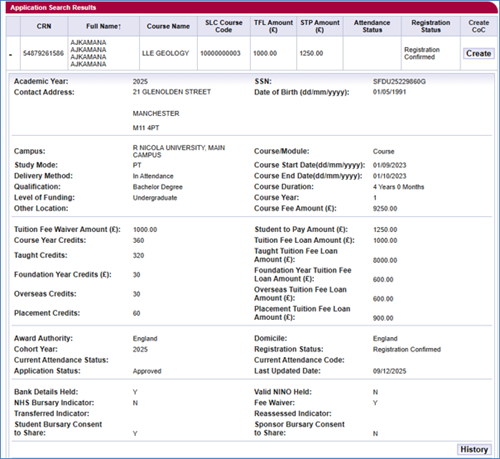
- Select the History button
- This will open the Application History page
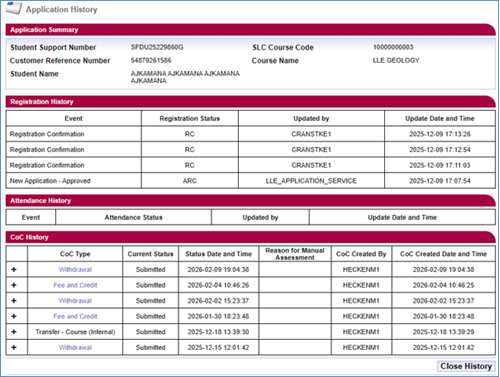
- The CoC History section in the Current Status column will show the current status of the CoC submitted for the student. If you select the +icon on the CoC, the line will expand to show the CoC status history
The CoC History area will detail the CoCs that have been submitted along with the:
- CoC Type
- Current Status
- Status Date and Time
- Reason for Manual Assessment
- CoC Created By
- CoC Created Date and Time
CoC statuses
Saved
This means that the user has saved the CoC to be submitted later. It has not been submitted yet.
Submitted
This means that the CoC has been recently submitted. It is now waiting to move into a queue to be worked. The system will update within 24 hours.
Sent for manual processing
This means that our automatic processing systems cannot work this CoC. It is in the queue for our processing staff to work it. Our service standard for CoC processing is 20 working days in off-peak periods and 30 working days during peak periods (August to end of November).