Version 1.0 - Last Updated: 15 Jul 2026
SIS LLE guidance
LLE Import Files
Go to the LLE Import Files menu and select LLE Import Files. This will open the file type selection.

There are 3 different import options available. To access one of the processes, select the radio button for:
- Registration
- Attendance
- CoC
If you're bulk uploading registration, attendance or change of circumstances, you must make sure the files meet the technical specifications for each process.
Registration
After you've exported the registration worklist report from SIS, you can update it with your registration confirmations.
The file can then be imported back into SIS. This will confirm your students’ registration in bulk to release bursary and maintenance payments.
- Select the Registration radio button and the relevant academic year.
- Select Choose file and select the file you want to upload.
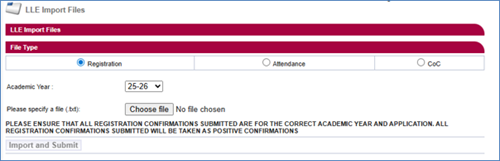
- Once you've chosen the file, select Import and Submit to import the file into SIS. The system will carry out validation on the file and if any records fail, you'll get an error message.
You can only make positive registration confirmations with the registration worklist import. For any negative confirmations, you'll need to go to the registration worklist and manually select N for 'not registered'.
Attendance
After you've exported the attendance worklist report from SIS, you can update it with your attendance confirmations.
The file can then be imported back into SIS. This will confirm your students’ attendance in bulk.
- Select the Attendance radio button and the relevant academic year.
- Select Choose file and select the file you want to upload.
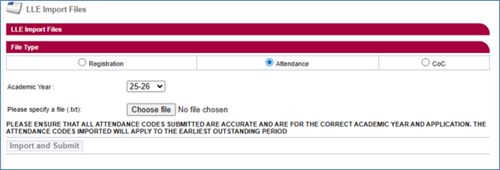
- Once you've selected the file, use the Import and Submit button to import the file into SIS. The system will carry out validation on the file and if any records fail, you'll get an error message.
CoC
After you've exported the CoC worklist report from SIS, you can update it with your CoCs.
The file can then be imported back into SIS.
- Select the CoC radio button.
- Select Choose file and select the file you want to upload.
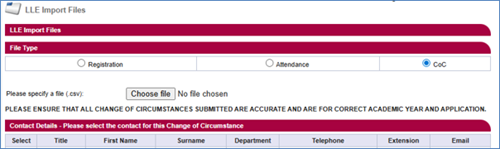
- Once you've chosen the file, select a contact for the CoC from the list, then select Import and Submit to import the file into SIS. The system will check the file. If it fails any of its validation rules, you'll get an error message.
Print this chapter